Creating Custom Social Proof Images
Transforming your five-star reviews into eye-catching social media posts is one of the most effective ways to build trust with your audience. The ReviewCatalyst Social Image Designer allows you to create professional, branded graphics in minutes without needing any external design software.
How to Create Your Social Image
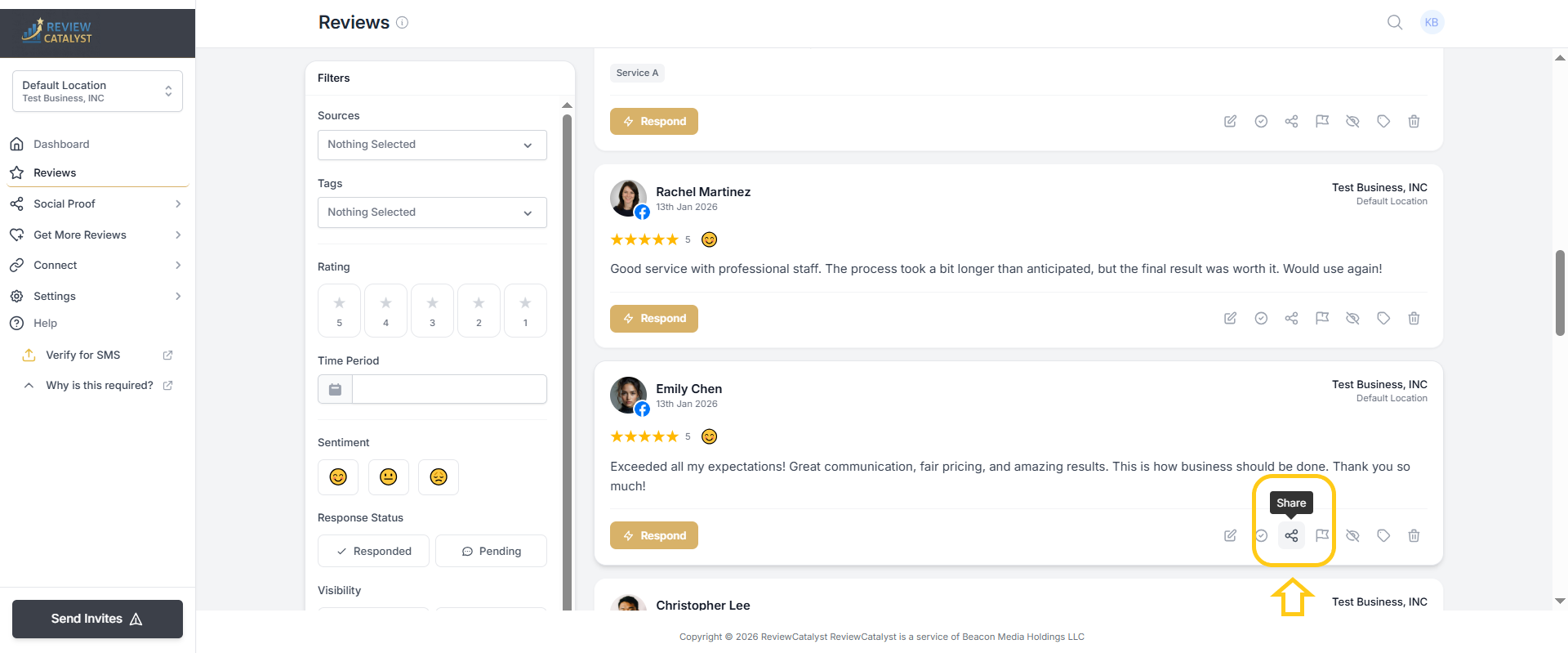
Follow these steps to turn a text review into a high-quality graphic:
- Locate the Review: Click on Reviews in the left sidebar navigation menu.
- Filter and Search: Use the search bar or the advanced filter options to find the specific review you want to highlight.
- Initiate the Designer: Click the Share button located on the review card.
- Choose a Template: Within the designer, use the Templates tab to select a base layout that fits your brand’s style.
- Customize the Design: Click the Design tab to adjust colors, fonts, and overall aesthetics.
- Export and Share: Once satisfied with your creation, click the Share button in the top right corner of the designer. You can export your image as a PNG or JPEG , both of which are compatible with all major social platforms.
Customizing Your Background
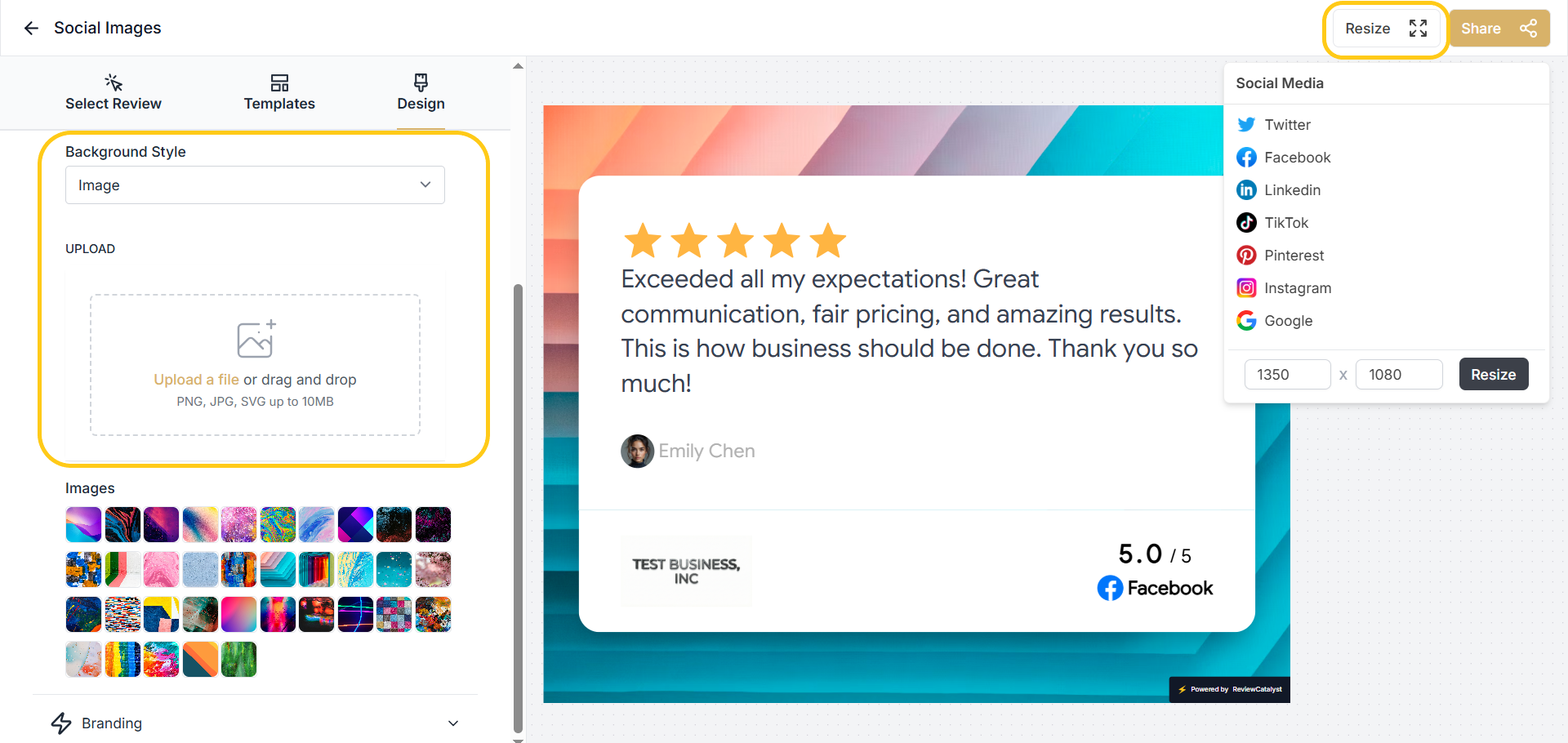
You can use our library of pre-set patterns or upload a unique image to make your post stand out:
- Switching Styles: In the Design tab, look for the Background Style dropdown and select Image.
- Uploading Your Own: You can drag and drop or upload a file (PNG, JPG, or SVG up to 10MB) to use as your custom backdrop.
- Preset Library: Choose from various colorful and modern background patterns directly below the upload section.
Adding Your Business Branding
To ensure your brand is front and center, you can easily add your company logo:
- The Branding Section: Open the Design tab and expand the Branding section at the bottom of the menu.
- Logo Placement: Upload your logo to have it automatically positioned on the social image, reinforcing your business identity.
Resizing for Social Media
Different platforms require different image dimensions. Our designer takes the guesswork out of formatting:
- Open Resize Options: Click the Resize button in the top right corner of the designer.
- Select a Platform: Choose from a list of predefined sizes for platforms like Twitter, Facebook, LinkedIn, TikTok, Pinterest, Instagram, and Google.
- Custom Dimensions: If you have a specific requirement, you can manually enter the width and height (e.g., 1350 x 1080) and click Resize to adjust the canvas instantly.
Was this article helpful?
Thanks for your feedback!