
Securing Your Account with Two-Factor Authentication (2FA)
Two-Factor Authentication (2FA) adds a critical layer of security to your account. By requiring a secondary code from your mobile device, you ensure that your business data and review profiles remain safe—even if your password is ever compromised.
Before You Begin
You will need a mobile device with a TOTP (Time-based One-Time Password) app installed. We recommend Google Authenticator.
How to Enable 2FA
- Open Profile Settings: Click on Settings in the side navigation menu, then select Profile from the left sidebar.
- Initiate Setup: Scroll down to the Two-Factor Authentication section and click Enable.
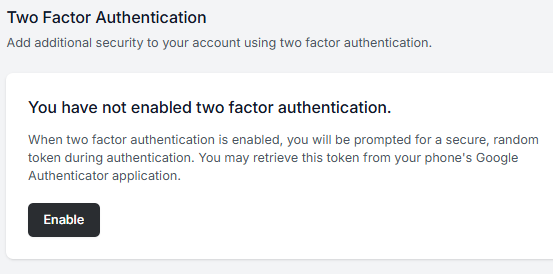
- Verify Identity: For your security, you will be prompted to enter your account password.
- Scan the QR Code: Open your authenticator app on your phone and scan the QR code displayed on the screen.
- Finalize: Enter the 6-digit code provided by your app to verify the connection.
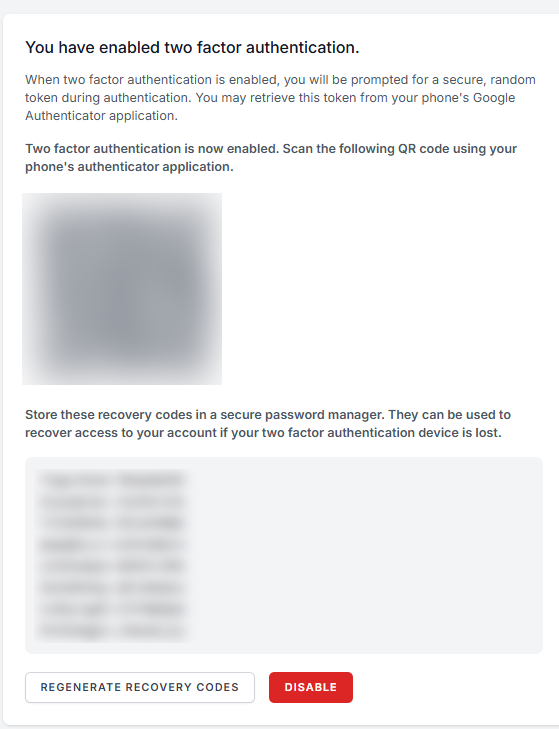
⚠️ Vital Step: Save Your Recovery Codes Once 2FA is enabled, you will be shown a list of Recovery Codes. Download or print these and store them in a secure place (like a password manager). If you lose your phone, these codes are the only way to regain access to your account.
How to Disable 2FA
If you need to move your 2FA to a new device or turn it off:
- Navigate to Settings > Profile.
- Scroll to the Two-Factor Authentication section.
- Click Disable and confirm your choice.
Note: We highly recommend keeping 2FA enabled at all times to protect your connected social media and Google accounts.
Was this article helpful?
Thanks for your feedback!