Collecting Internal Testimonials
The Testimonials feature is a powerful tool for businesses that want to collect feedback directly, without requiring customers to log into third-party sites like Google or Facebook. These “internal” reviews are perfect for capturing detailed stories that you can then showcase through website widgets or turn into high-converting social media posts.
🛡️ Why Use Testimonials?
- Zero Friction: Customers don’t need a Google or Yelp account to leave their feedback.
- Full Control: Since these reviews are stored internally, you have 100% control over which ones are featured on your site.
- Detailed Stories: Internal testimonials often result in longer, more qualitative feedback that explains the specific value of your service.
🛠️ Step 1: Enable Testimonials
Before you can collect internal reviews, you must “connect” the Testimonial source to your account:
- Navigate to Connect: Click on Connect in the side navigation menu.
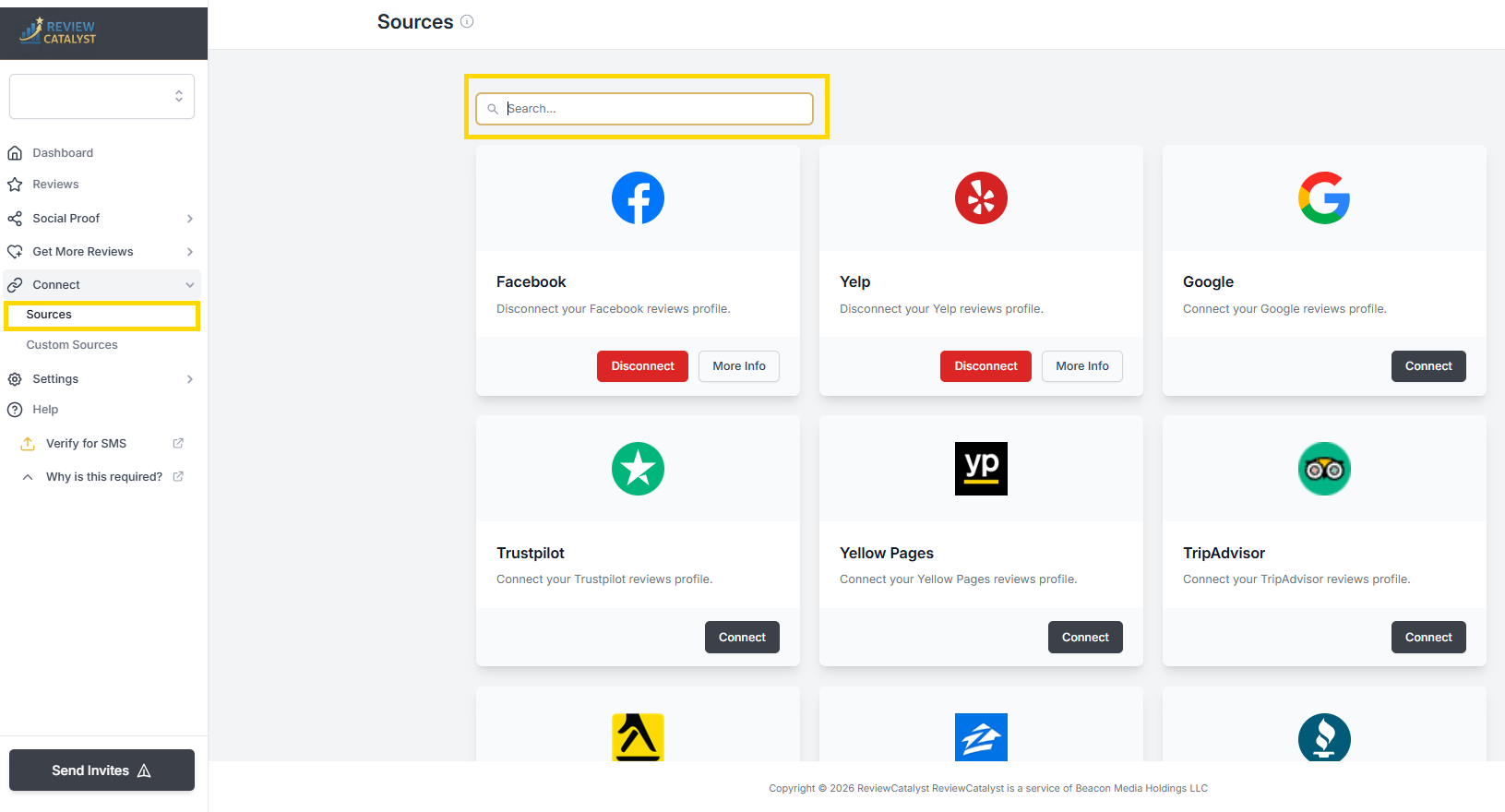
- Search for Testimonials: Use the search bar to find the Testimonials source icon.
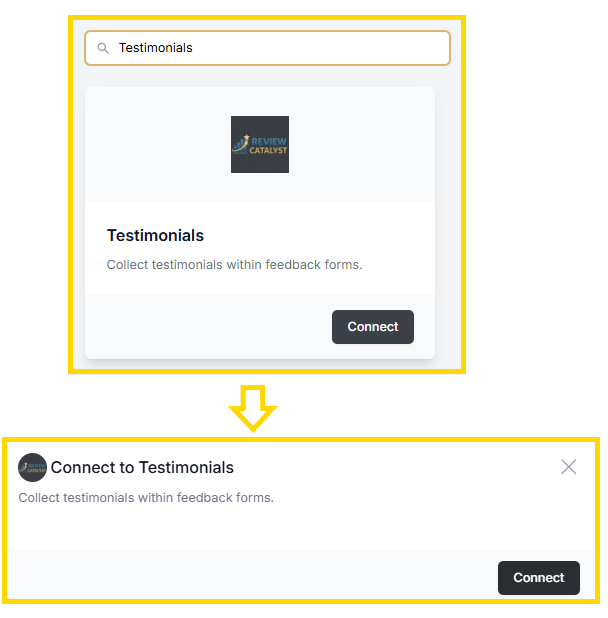
- Link the Source: Click Connect , then click Connect again in the pop-up window to confirm.
🛠️ Step 2: Enable Collection on Your Forms
Once the source is connected, you need to tell your feedback forms to actually display the testimonial option to customers:
- Open Feedback Forms: After connecting, you will be automatically redirected to the Feedback Forms page. (You can also find this under Get More Reviews > Feedback Forms).
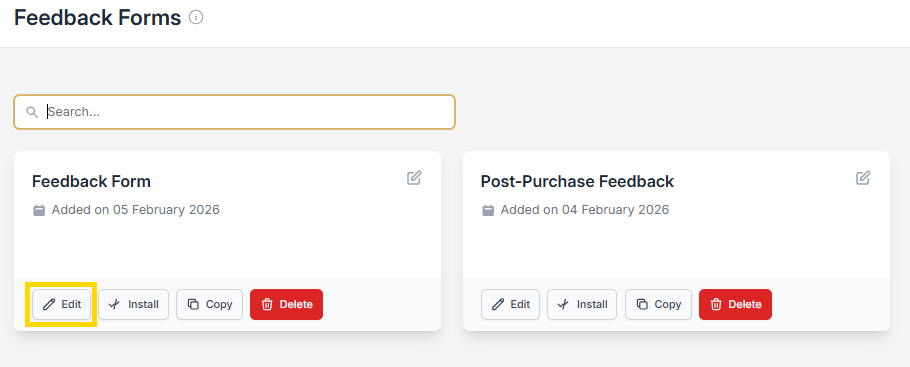
- Edit Your Form: Click Edit on your existing form (or click Create New Form).
- Toggle the Switch: Go to the Content & Flow tab within the form editor and scroll down.
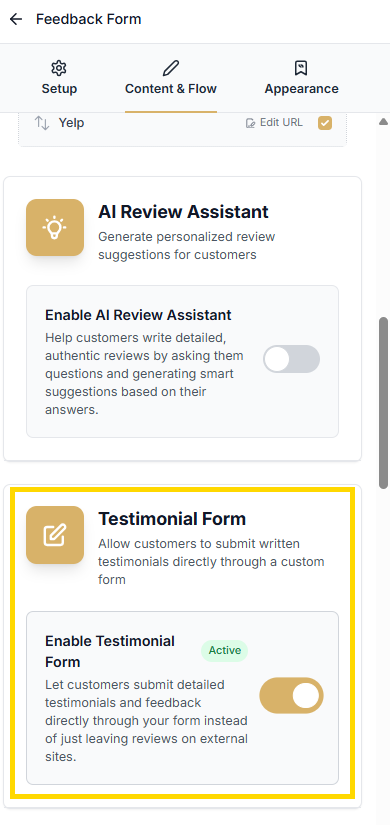
- Activate: Switch the Testimonial toggle to ON.
- Save: Click Save/Publish to update your form.
💡 How to Use Your Collected Testimonials
Now that customers can leave direct feedback, here is how you can put those words to work:
1. The “Wall of Love” Widget
Display your testimonials on a dedicated page of your website. Because these aren’t pulled from Google, you can use our Widget Builder to choose custom colors and layouts that perfectly match your brand’s aesthetic.
2. Social Image Generator
Turn a text-based testimonial into a professional graphic for Instagram or Facebook.
- Go to your Reviews table.
- Find a testimonial you love and click the Social Share icon.
- Choose a background image, adjust the font, and download a “ready-to-post” image.
3. Email Marketing
Copy and paste your best testimonials into your email newsletters or “Welcome” series for new subscribers. Real stories from real customers are more persuasive than standard marketing copy.
Was this article helpful?
Thanks for your feedback!