How To Connect To A Review Source
Establishing a connection to a review source is the foundational step in automating your reputation management. Once connected, ReviewCatalyst will begin pulling your historical data and monitoring for new feedback across the web.
Setup Guide
Follow these steps to link your platforms (e.g., Google Business Profile, Facebook, Yelp) to your ReviewCatalyst dashboard.
- Navigate to Connect: From your main dashboard, click on Connect in the top navigation bar.
- Search for Your Platform: Use the search bar to find the specific review source you want to link.
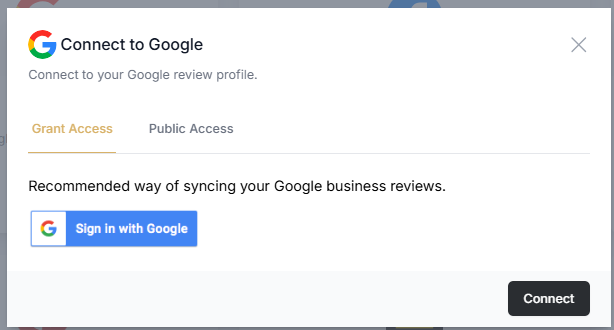
- Initiate Connection: Click the Connect button next to the platform icon.
- Authentication: Follow the on-screen instructions.
- Note: For platforms like Google or Facebook, you will be prompted to log in to the account that manages that specific business listing.
- Finalize & Sync: Once authorized, the system will begin the initial import. This “First Sync” can take anywhere from 2 to 10 minutes depending on the volume of reviews being retrieved.
How Often Do We Sync Reviews?
To keep your dashboard current, ReviewCatalyst checks for new reviews on a recurring schedule. However, frequency depends on the specific platform’s API limitations:
- Real-Time Syncing: Sources that utilize the Direct Sign-In option often support near real-time updates.
- Daily Syncing: Some platforms limit data requests to once every 24 hours.
- Checking Your Status: You can view the specific sync schedule for any of your active sources by clicking the “More Info” button on the specific source card within your dashboard.
Best Practices
To ensure the most reliable data flow, we recommend the following:
- Prioritize Sign-In Methods: Whenever a “Sign-In with [Platform]” option is available, use it. This provides a secure, authenticated token that is less likely to break than a simple URL-based connection.
- Check Admin Permissions: Ensure the account you are using to connect has “Admin” or “Owner” permissions for the business listing.
- Direct URLs: If you are connecting via a URL rather than a login, ensure you are using the public-facing URL of your business profile (e.g., https://www.google.com/maps/place/your-business).
What Happens if My Sync Fails?
Technical hiccups can happen due to platform API updates or expired login credentials. Here is how ReviewCatalyst handles it:
1. Automatic Retries
If a sync fails, our system doesn’t give up immediately. We will automatically retry the connection at staggered intervals over the next 24 hours.
2. Error Notifications
If the connection continues to fail after multiple attempts, we will:
- Send an automated alert to your account email.
- Mark the source with a “Failed” status badge in your dashboard.
3. Quick Fixes
- Verify the URL: Ensure the business hasn’t changed its vanity URL or been marked as permanently closed on the source platform.
- Re-Authenticate: Often, a platform (like Facebook) will expire a “token” for security. Simply clicking “Reconnect” and logging back in usually solves 90% of sync issues.
- Clear Cache: If the screen hangs during the “Connecting” phase, try clearing your browser cache or using an incognito window.
Need Human Help? If you’ve verified your credentials and the sync still fails, our support team is ready to jump in. Please contact us at support@reviewcatalyst.com with a screenshot of the error message.
Was this article helpful?
Thanks for your feedback!