AI-Powered Review Responses
Save time and maintain a consistent brand voice by using our built-in AI response generator. Whether you want a professional, quirky, or concise tone, the AI can handle the heavy lifting for you.
How to Use AI Responses
- Navigate to Reviews: Select Reviews from the side navigation menu.
- Select a Review: Click Respond on the review you want to address.
- Choose Your Tone: Under the AI Settings section, use the Tone & Style dropdown to select how you want the AI to sound.
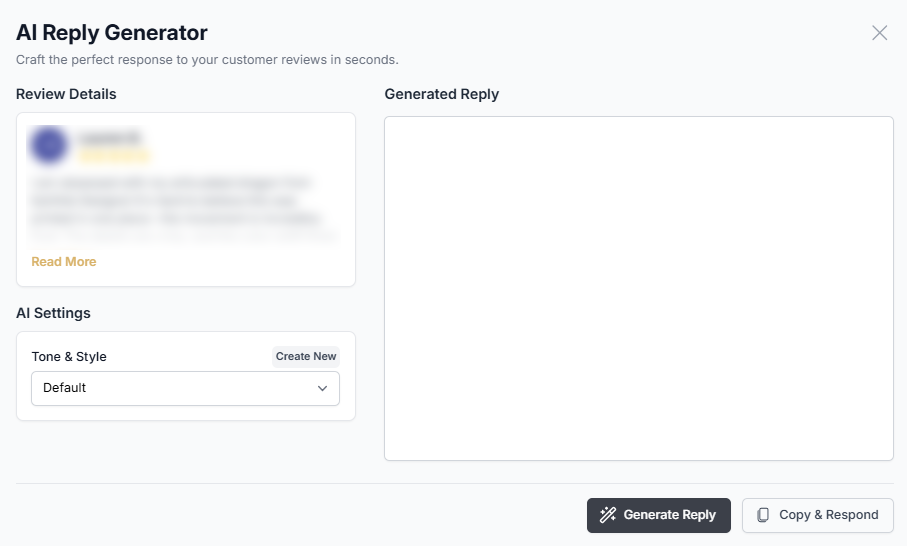
- Default: A standard, professional response.
- Custom: Any specialized tones you have previously created.
- Generate: Click the Generate Reply button.
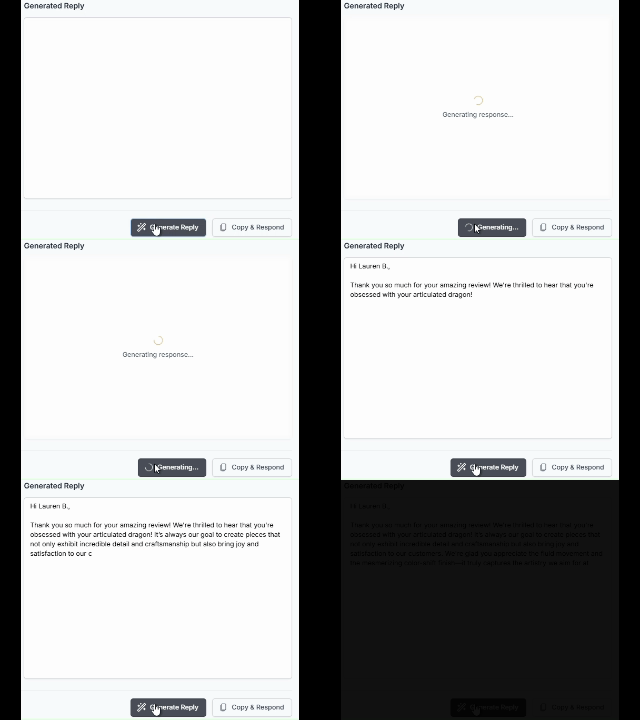
- Note: This feature is available for Premium/Pro tiers. If you do not see this button, you can still type your response manually.
- Review & Refine: The automated response will appear in the Generated Reply window. You can send it as-is, or edit the text to add a personal touch.
- Submit or Copy Your Response Once you are satisfied with the text, click Copy & Respond. Depending on the review source, the system will handle the post in one of two ways:
- Direct Response (Google & Facebook): For platforms like Google and Facebook, the system will attempt to post your reply directly to the site.
- Note: Some Facebook reviews may face API limitations and require a manual response.
- Manual Copy (Yelp & Others): Some platforms, such as Yelp, do not allow third-party apps to post replies directly. In these cases, once you click the button to copy your generated response to your clipboard the system will automatically direct you to the review to respond. You can then simply paste the response into the platform’s native reply field.
- Direct Response (Google & Facebook): For platforms like Google and Facebook, the system will attempt to post your reply directly to the site.
-
Disclaimer: Direct response availability is subject to the specific API rules of each review site. If a site does not support direct integration, you will be prompted to “Copy & Respond” manually to ensure your customer still receives your feedback.
🛠️ Personalize the AI: Create Your Own Tone & Style
You aren’t stuck with a “one-size-fits-all” bot. You can “train” the AI to respond exactly like your brand by creating a reusable Tone & Style.
To create a new tone:
- In the AI Reply Generator window, click Create New next to Tone & Style.
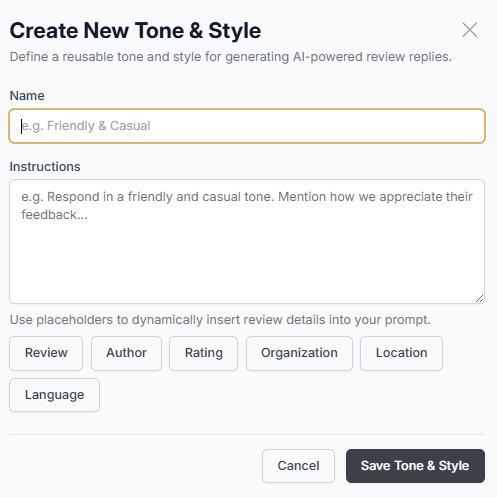 - Name Your Style: Give it a clear name like “Friendly & Casual” or “Professional Concierge.”
- Write Your Instructions: In the Instructions box, tell the AI how to behave.
- Example: “Respond in a warm, friendly tone. Always thank the customer by name and mention our commitment to quality.”
- Use Dynamic Placeholders: Use the buttons below the text box to insert data automatically. For example, clicking Author will ensure the AI always addresses the reviewer by their name.
- Save: Click Save Tone & Style. Your new style will now appear in the dropdown menu for all future reviews!
How to handle “Copy & Respond” sites:
For sites like Yelp and Tripadvisor , our system makes it as fast as possible:
- Generate your AI response.
- Click the Copy & Respond button (this automatically copies the text to your computer’s clipboard).
- A new tab will open directly to that specific review on the external site.
- Simply Paste (Ctrl+V or Cmd+V) your response and hit submit!
⚠️ A Note on Facebook & Security
While our AI is highly advanced, remember that Facebook’s automated spam filters are always watching.
- Avoid Repetition: If you use the exact same custom prompt for every single review without any variation, Facebook might flag the responses as “automated spam.”
- The Human Touch: We recommend a quick “read-through” before hitting send. Using placeholders like Author helps keep things unique and can help prevent the API blocks we discussed earlier.
Was this article helpful?
Thanks for your feedback!