
Collecting Customer Consent & Opt-Ins with ReviewCatalyst Forms
Building a high-quality review list starts with obtaining clear, compliant consent from your customers. By using our built-in Opt-In Forms , you can ensure your customers are ready and willing to receive review requests via email or SMS.
Follow the updated steps below to access your form and explore creative ways to use it in your business.
🛠 How to Access Your Opt-In Form
- Navigate to the Sidebar: In the main dashboard, click on Get More Reviews in the left sidebar.
- Access Requests: Select the Request Reviews link from the expanded menu in the sidebar.
- Locate Your Campaign: Find the campaign you want to share and click on the Opt-In tab.
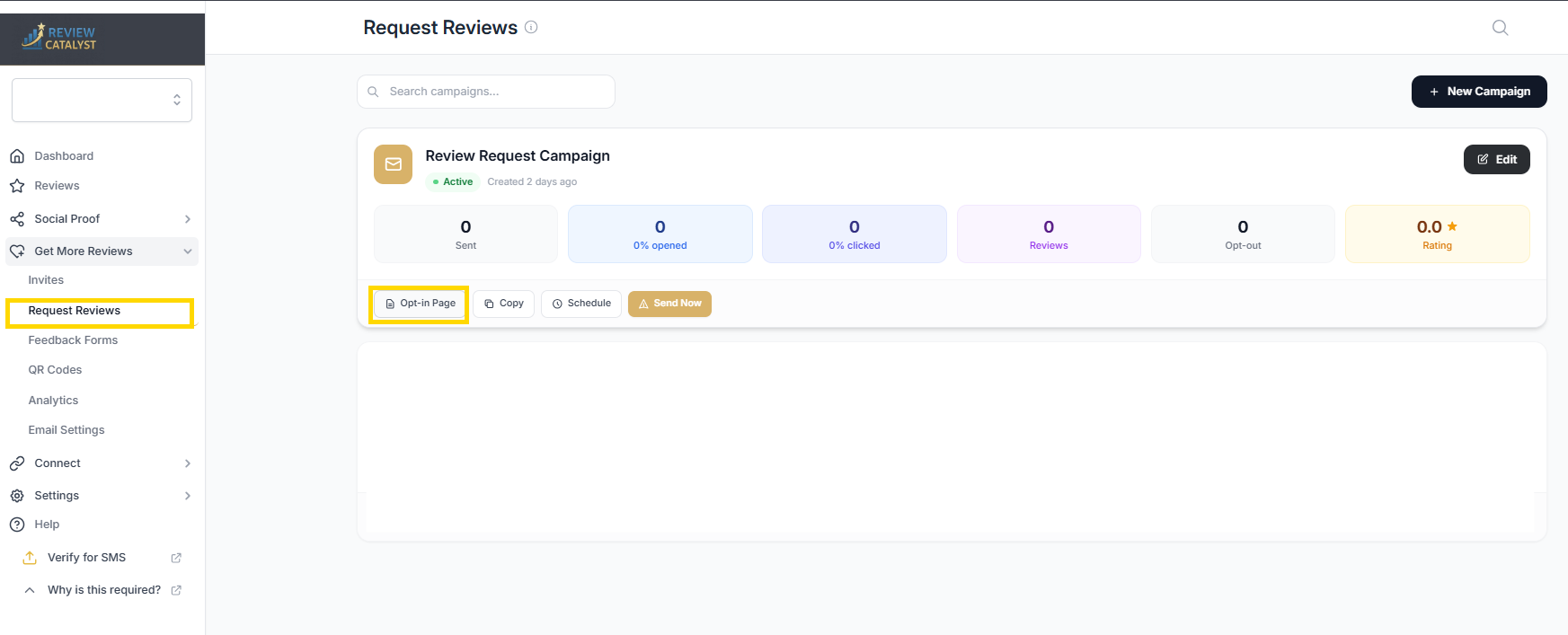
- Open the Sharing Settings: Click the View Opt-In Form button.
- Get the URL: A pop-up window will appear. Click the Preview Live Form button to open the actual form in a new tab.
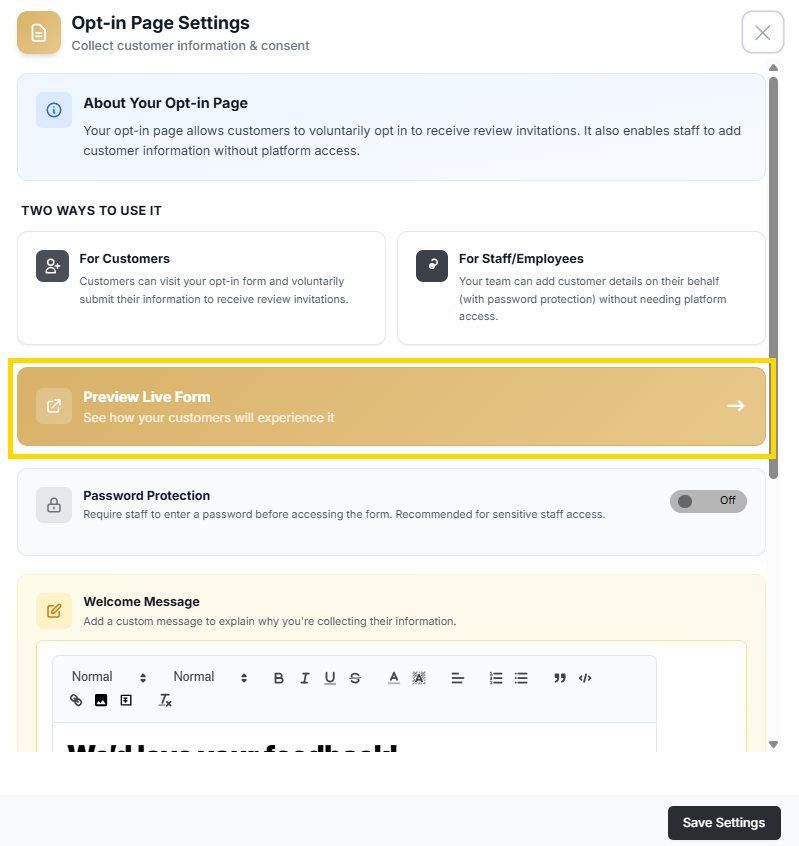
- Copy the URL from your browser’s address bar—this is the unique link you will use to collect consent.
Note: The opt-in form can be used by customers or employees to opt-in to receive review requests. You can optionally enable authentication in the settings if you want to restrict form access to authorized team members only.
💡 Creative Ways to Use Your Opt-In URL
Once you have your unique Opt-In URL, you can get creative with how you present it to customers. Here are the most effective ways to drive sign-ups:
1. In-Store Tablet Kiosk (Highly Recommended)
Set up a tablet (iPad or Android) at your checkout counter or in your waiting room so customers can opt-in right there.
- The Setup: Load your “Preview Live Form” URL in a mobile browser and use “Kiosk Mode” or “Guided Access” (on iOS) to lock the screen to that page.
- The Ask: Place a small sign next to the tablet that says: “Join our VIP list for a quick review link and exclusive updates!”
2. QR Code Displays
Turn your URL into a QR code to make mobile signup instant in physical locations.
- Counter Signs & Table Tents: Place QR codes at point-of-sale (POS) systems or on tables for easy scanning while customers are on-site.
- Printed Receipts: Add a QR code or a “tear-off” section to your printed receipts so customers can opt-in after they leave.
- Window Displays: Use QR codes on store windows so shoppers can engage even when the store is closed.
3. Digital Touchpoints
Integrate the link into your existing digital communication.
- Email Signatures: Add a line to your team’s email signatures: “Want to share your experience? Opt-in for a review link here [Link].”
- Post-Service Thank-You: Insert the opt-in link into existing post-purchase or appointment follow-up emails.
- Social Media Bios: Share the opt-in link in your Instagram or Facebook bio to capture feedback from your digital audience.
4. Team-Led Onboarding
Train your team to offer the opt-in as part of the customer service experience.
- Verbal Consent: Staff can ask customers if they’d like to receive updates via SMS and then direct them to the tablet or provide the link.
- Internal Use: Employees can use the form on their own devices to quickly add a customer (with their permission) during a positive interaction.
✅ Best Practices for Consent & Compliance
- Active Opt-In: Consent must be actively given; never use pre-ticked checkboxes.
- Be Transparent: Clearly state what customers are signing up for, how often they’ll receive messages, and that “Message and Data rates may apply”.
- Easy Opt-Out: Remind customers they can reply STOP at any time to unsubscribe from text messages.
Was this article helpful?
Thanks for your feedback!