How To Get More Reviews | Review Campaigns
Building trust with potential customers and improving your local search rankings depends heavily on review volume and recency. Search engines like Google prioritize businesses that consistently receive fresh feedback.
ReviewCatalyst allows you to automate this process, ensuring a steady stream of reviews without manual daily effort.
Step 1: Create Your Campaign
- Open Request Reviews: Click on Get More Reviews in the side navigation, then select Request Reviews.
- Start New Campaign: Click the New Campaign button.
- Name and Template: Enter a descriptive name for your campaign. You may select a pre-designed template or start with a blank one to customize from scratch.
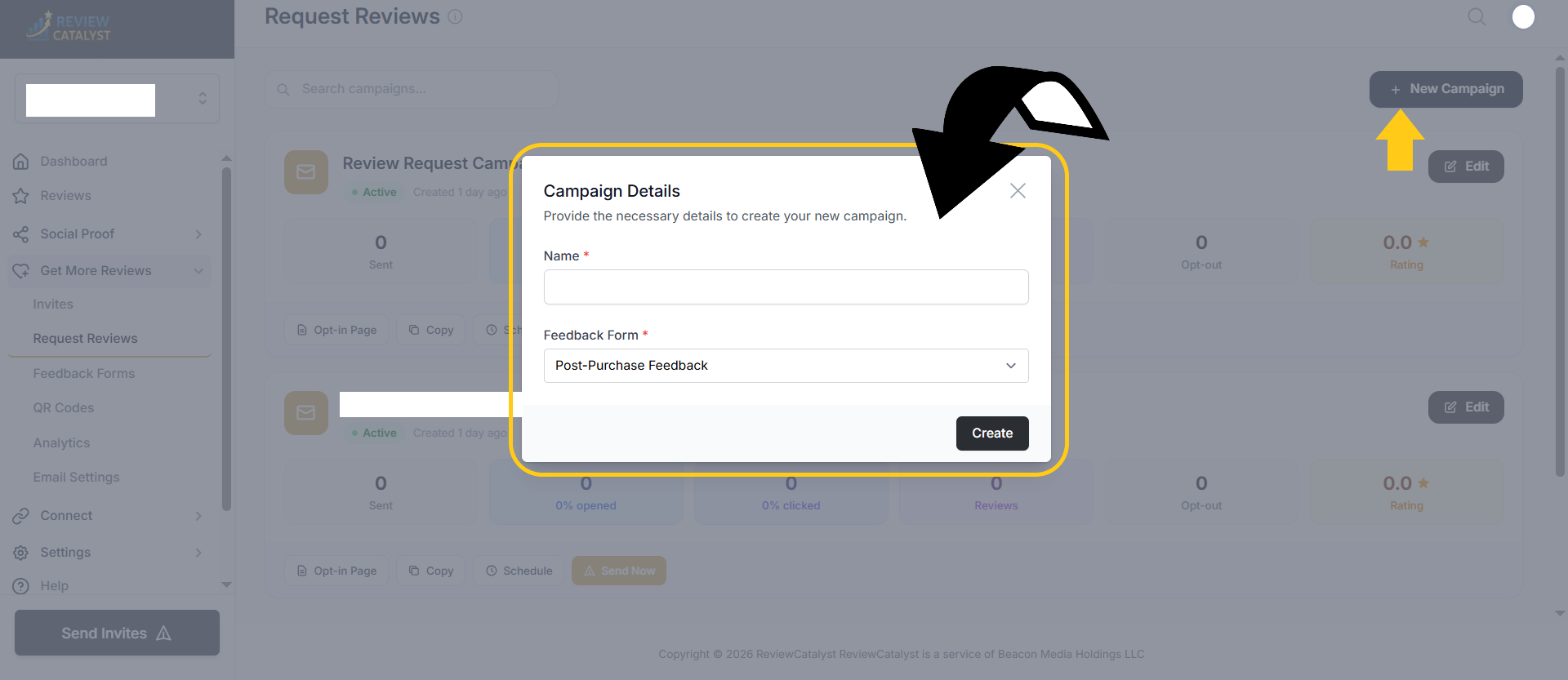
- Confirm: Click Create.
Step 2: Design and Test Your Messages
- Subject Line: Type a compelling subject line for your email to encourage high open rates.
- Customize Content: Use the built-in editor to tailor the email and SMS templates to your brand’s voice.
- Send a Test: Once you are satisfied with the design, click Save and Send Test.
- Verify: Enter your own email address or phone number to receive a preview. Check your inbox to ensure the layout, links, and branding look great.
Step 3: Go Live and Automate
Once your testing is complete, follow these steps to begin sending requests to your customers:
- Access Campaign Settings: Click on the Settings tab within your specific campaign.
- Schedule Sending: Adjust the times you want your messages to be delivered. Note that the system currently operates on UTC time.
- Activate: Uncheck the Paused Campaign option to enable the sequence.
- Set Delivery Delays: Decide if you want to add an automatic delay (in hours) before the first request is sent after a customer is added to your list.
- Finalize: Click Save. Your campaign is now live and will follow your defined schedule and delay parameters.
Managing Your Credits
Each review request sent via email or SMS carries a specific credit cost.
How to View Credit Usage
- Navigate to Settings: Click on Settings in the side navigation.
- Open Credits: Select Credit Usage from the left sidebar.
- Monitor Status: You can view your total remaining credits and a history of your usage over time.
Purchasing Additional Credits
If you require more credits than your current plan provides, you have two options:
- Upgrade Your Plan: Move to a higher tier for a larger monthly allotment.
- Buy Add-ons: Click the Buy Credits link in the left sidebar to purchase non-expiring credits as needed.
Was this article helpful?
Thanks for your feedback!