
How To Generate and Download QR Codes for Feedback Forms
QR codes provide a seamless, physical-to-digital bridge for your customers to share their experiences. By linking a QR code to a Feedback Form rather than a direct review site, you can intelligently route customers, pre-screen for negative feedback, and simplify the login process on mobile devices.
Why Use Feedback Forms with QR Codes?
- Negative Feedback Prevention: Give customers a private channel to voice concerns before they post a public review.
- Deep Linking: Our system can automatically detect if a customer has native apps like Google Maps installed on their phone. This allows the app to open directly, bypassing the need for the customer to sign in again.
- Convenience: Perfect for placement on table tents, receipts, business cards, or storefront windows.
How to Create and Download Your QR Code
1. Navigate to Feedback Forms: Click on Get More Reviews in the left sidebar and select Feedback Forms.
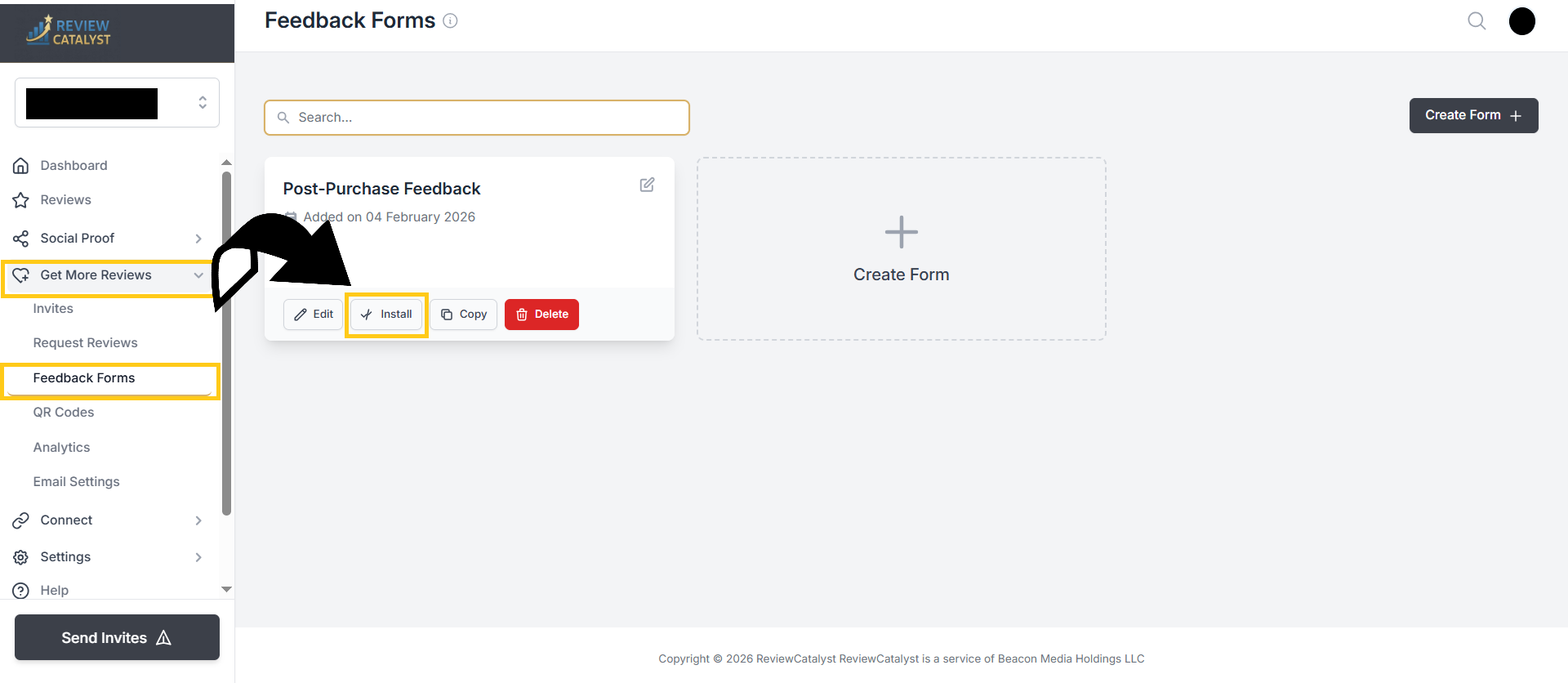 2. Access QR Settings: Locate your desired form and click the Install button.
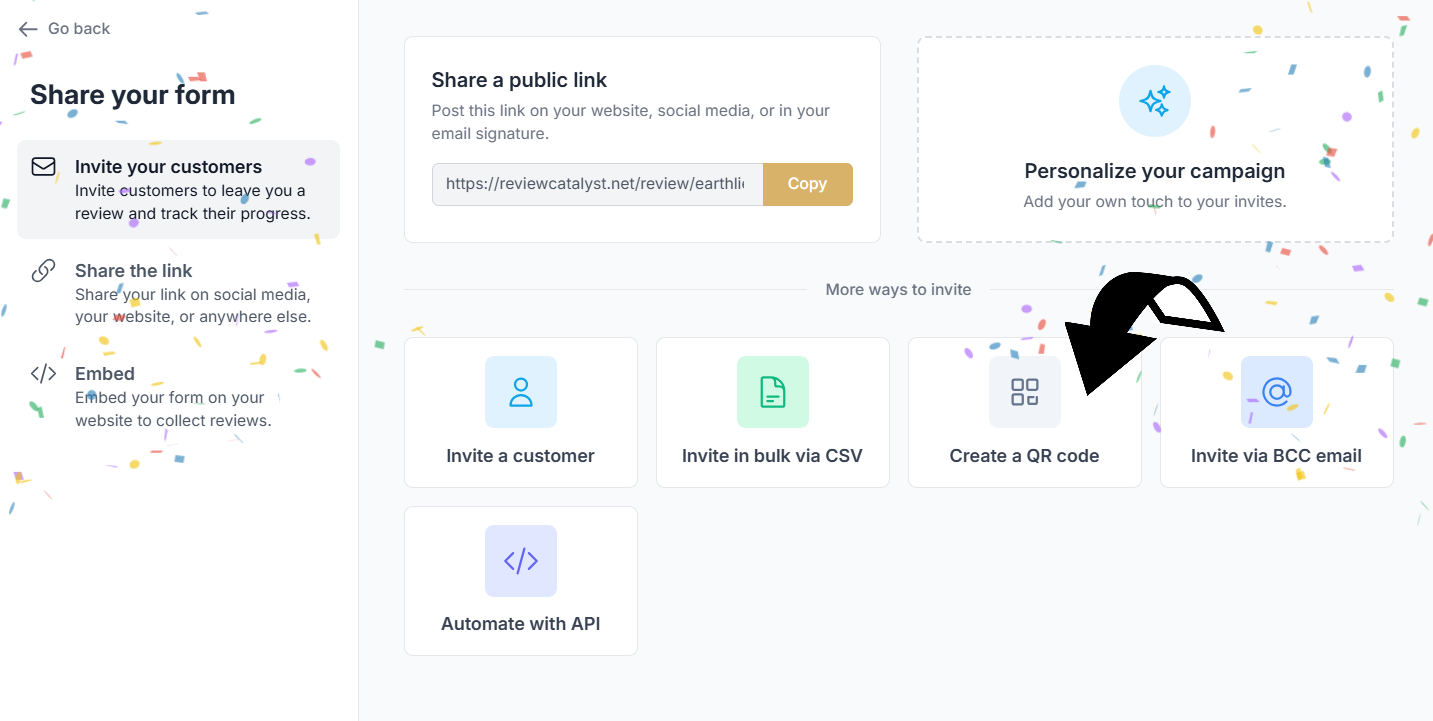
3. Choose the QR Tab: In the “Share your form” window, select Create a QR Code from the left-hand menu.
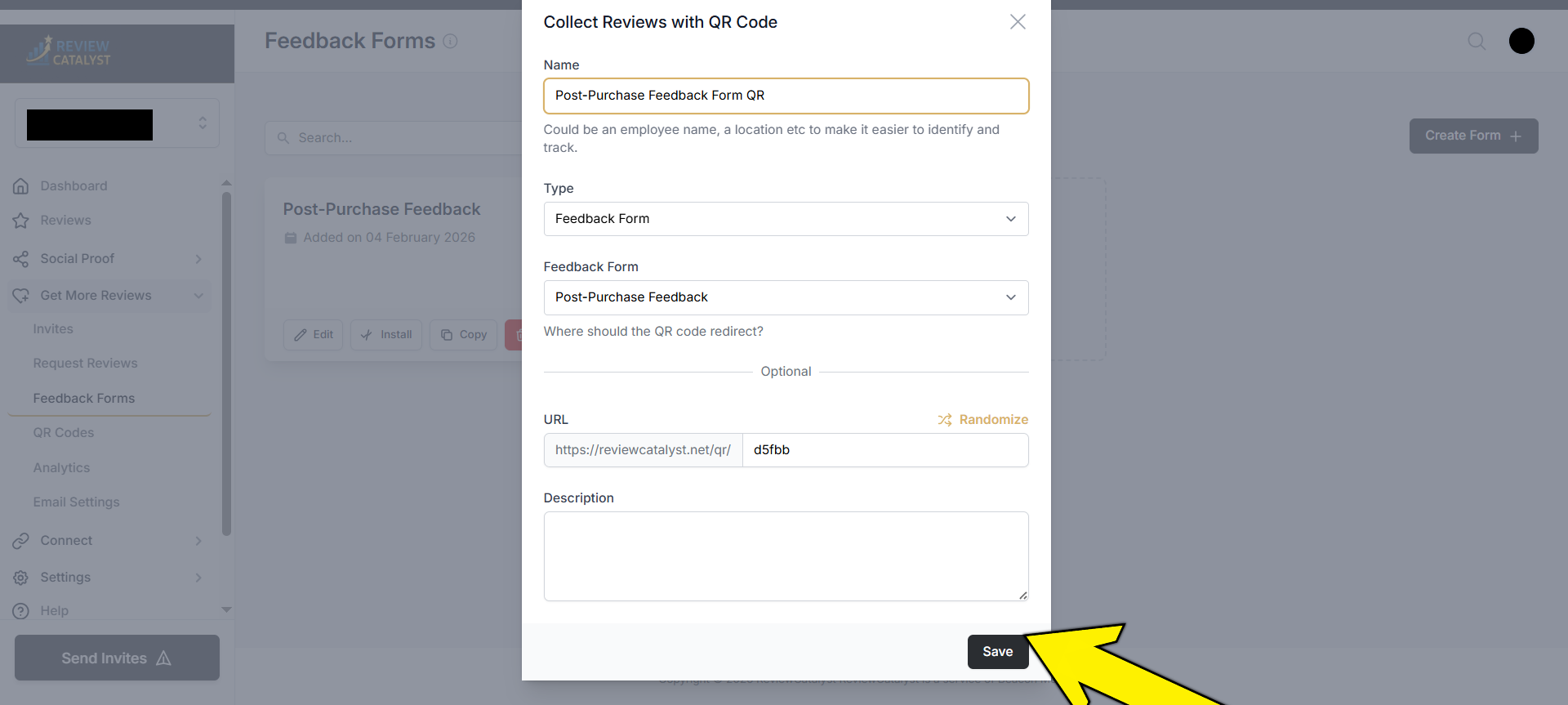
5. Configure Your Code:
- Name: Give your code a specific name, such as “Front Desk QR”.
- Feedback Form: Select the specific form you want this code to launch.
- Redirect (Optional): You can provide an optional URL if you want the QR code to redirect elsewhere under specific conditions.
- Save and Download: Click Save.
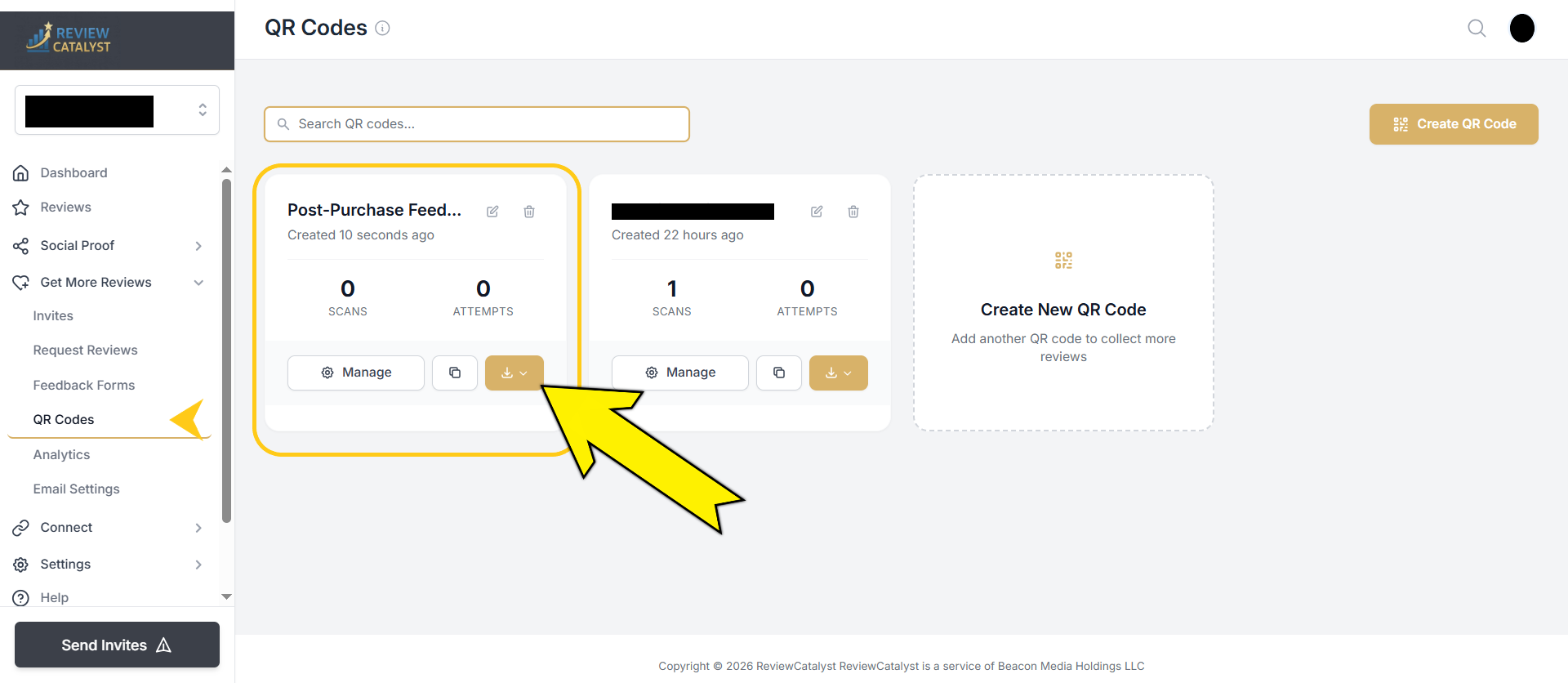
- Download the Image: Navigate to the QR Codes section in the left sidebar. You will see your newly created code card; click the Download button to save the file for printing or web use.
Was this article helpful?
Thanks for your feedback!