
How To Add Time Delay To Review Requests
ReviewCatalyst allows you to strategically time your review requests to ensure they reach customers at the perfect moment. Whether you want to set a standard delay for all customers or adjust timing for a specific individual, our platform provides flexible scheduling options.
Setting a Default Campaign Delay
Establishing a global delay for a campaign ensures that every customer added to that sequence—whether manually or through automation—receives their invitation after a specific period.
- Navigate to Request Reviews: In the left sidebar, click on Get More Reviews and select Request Reviews.
- Edit Your Campaign: Locate the campaign you wish to modify and click the Edit icon.
- Access Settings: Within the campaign editor, click the Settings tab located in the left-hand sub-navigation.
- Configure Wait Time: Scroll down to the Advanced section to find the Wait time field.
- Enter the number of Hours you would like the system to wait before sending the first message.
- Example: Entering “24” will ensure the request is sent exactly one day after the customer is added to the system.
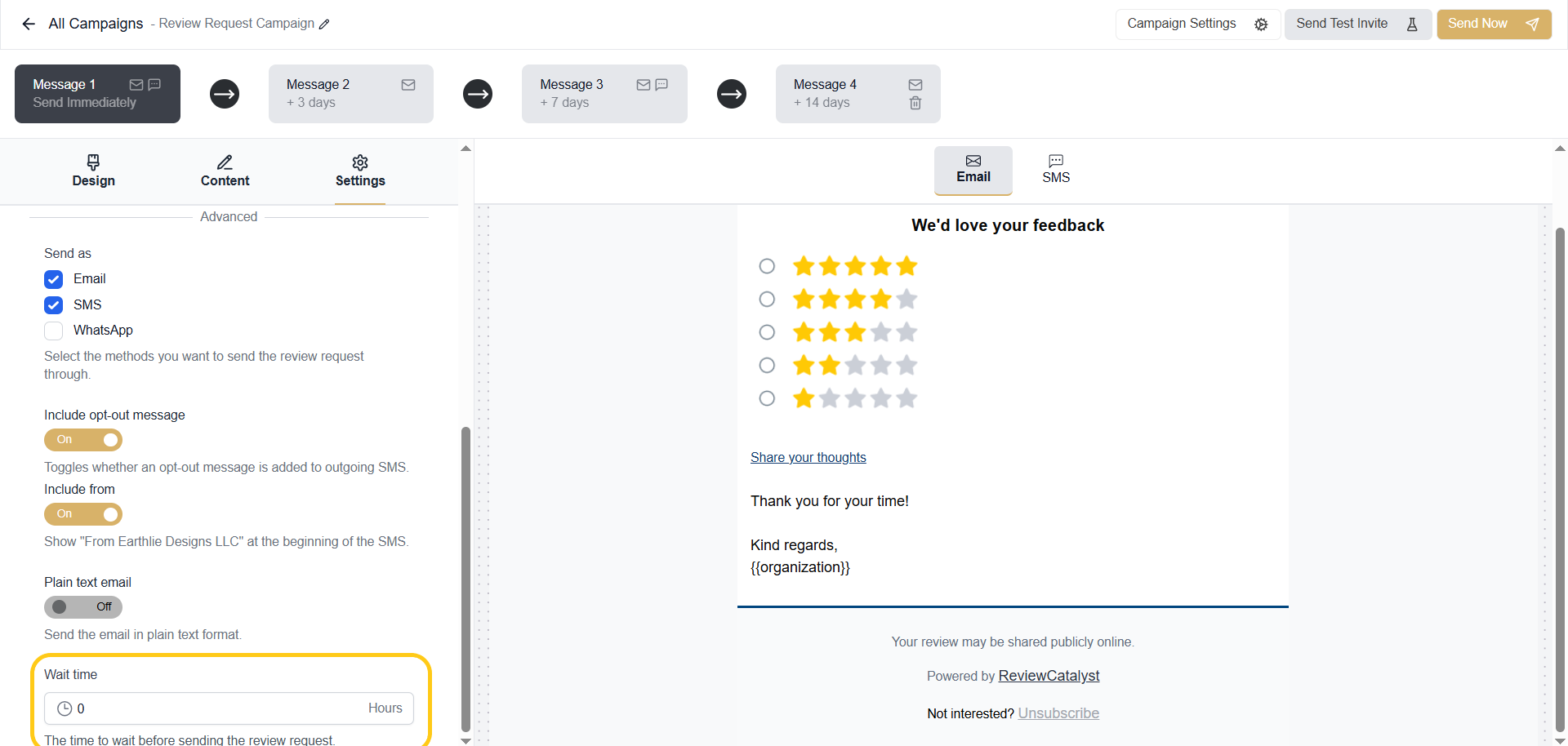
- Save Changes: Click Save to apply the new schedule to all future invitees.
Delaying an Individual Review Request
If you are manually inviting a customer and want to override the default campaign settings for a one-time delay, you can do so through the manual invite tool.
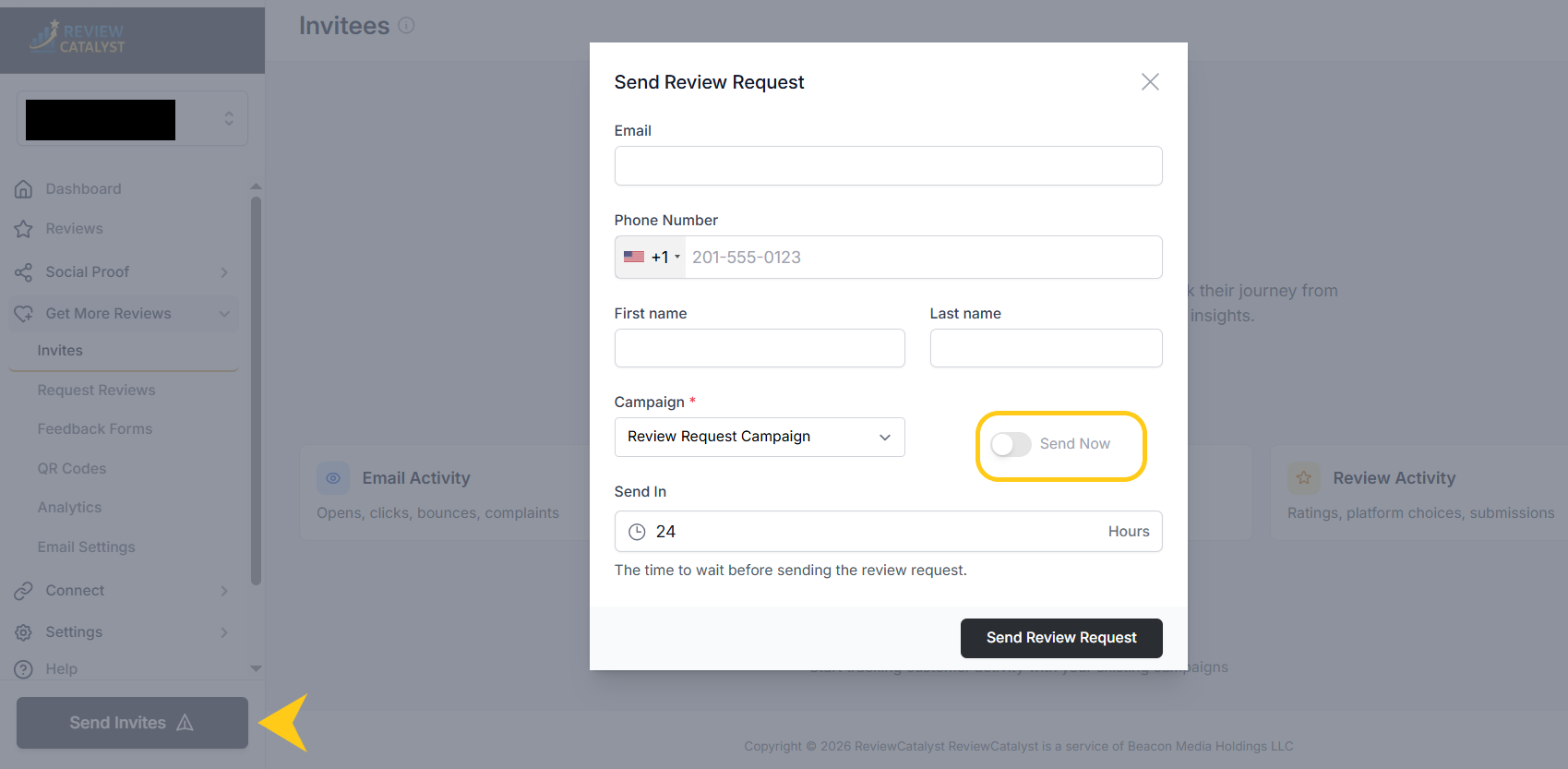
- Open the Invite Tool: Click the Send Invites button located at the bottom of the left sidebar.
- Enter Customer Details: Fill in the customer’s email address, phone number, and name as usual.
- Select Your Campaign: Choose the appropriate campaign from the dropdown menu.
- Adjust the Schedule: * Locate the Send Now toggle. Switch it Off to unlock scheduling options.
- In the Send In field, enter the specific number of hours you wish to wait before this invitation is sent.
- Finalize: Click Send Review Request to queue the message.
Pro Tips for Scheduling
- API Support: For developers, these delay parameters can also be passed via the ReviewCatalyst API. Refer to our technical documentation for the specific “delay” payload requirements.
- Sequence Timing: Remember that the delay set in the “Wait time” field only affects Message 1 of your campaign. Subsequent messages (e.g., Message 2, Message 3) will follow the intervals established in your campaign timeline (e.g., ”+ 3 days” after the previous message).
Was this article helpful?
Thanks for your feedback!