
Display Feedback Form On Your Website
Integrating a feedback form directly into your website—such as on a “Thank You” or order confirmation page—is a powerful way to capture customer sentiment while the experience is still fresh. Like our social proof widgets, these forms are easy to install and require no advanced coding knowledge.
Installation Steps
- Navigate to Feedback Forms: From your main dashboard, click on Get More Reviews in the left sidebar to expand the menu.
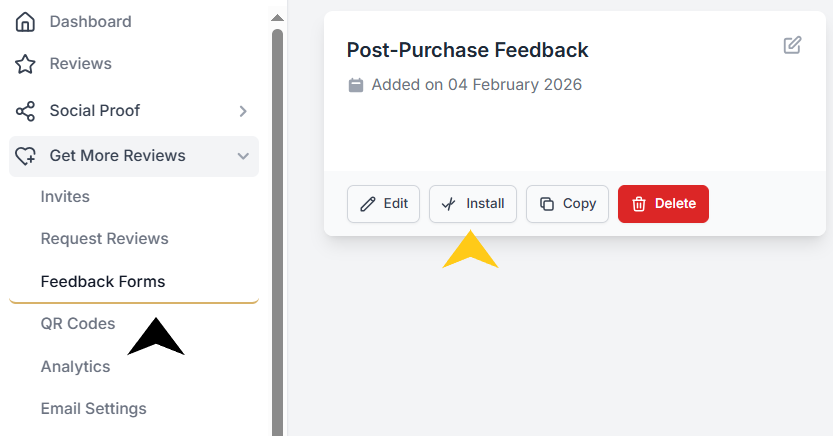
- Click on Feedback Forms.
- Initiate Installation: Locate the specific form you wish to use (e.g., “Post-Purchase Feedback”) and click the Install button.
- Choose the Embed Option: In the “Share your form” window, select the Embed tab from the left-hand options.
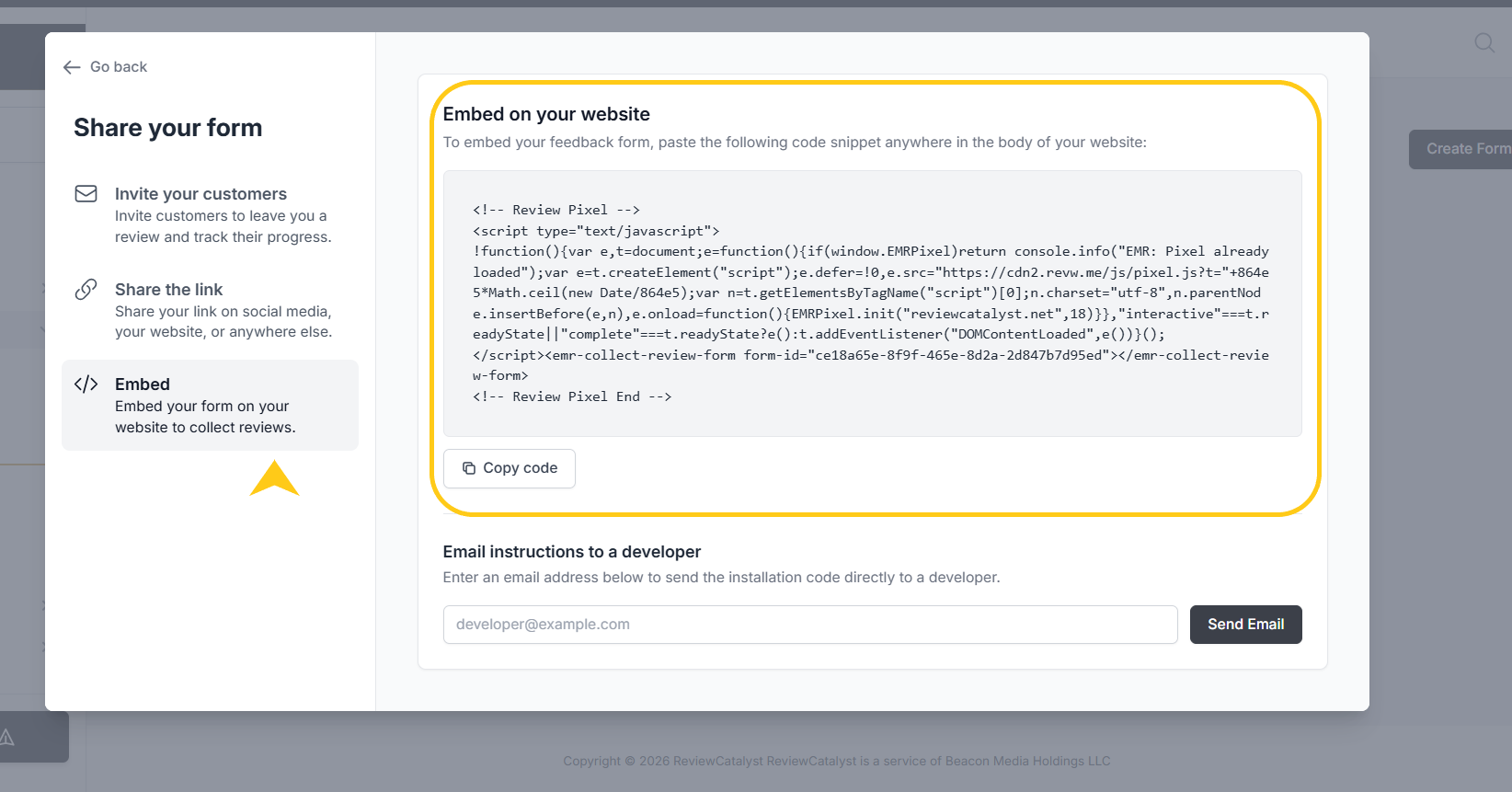
- Retrieve Your Code: You will see a dedicated “Embed on your website” section containing your unique code snippet.
- Self-Installation: Click the Copy code button to save the snippet to your clipboard.
- Send to Developer: If you have a technical team, enter their email address in the provided field and click Send Email to forward the instructions directly to them.
How to Place the Code
To ensure the form renders correctly on your site, paste the copied code snippet anywhere within the body of your website’s HTML on the specific page where you want the form to appear.
Helpful Tips
-
Consistency: The installation process for feedback forms is identical to our Social Proof Widgets. If you have already installed a review carousel or badge, you can manage your feedback forms using the same workflow.
-
Automatic Updates: Any changes you make to the form’s questions or design within the ReviewCatalyst dashboard will update automatically on your website—no need to replace the code.
Was this article helpful?
Thanks for your feedback!